TV Detox
让老旧、缓慢的 Android TV 重新变快。
Claude Code 或 Codex 负责干活。你只需按遥控器上的 OK 键。




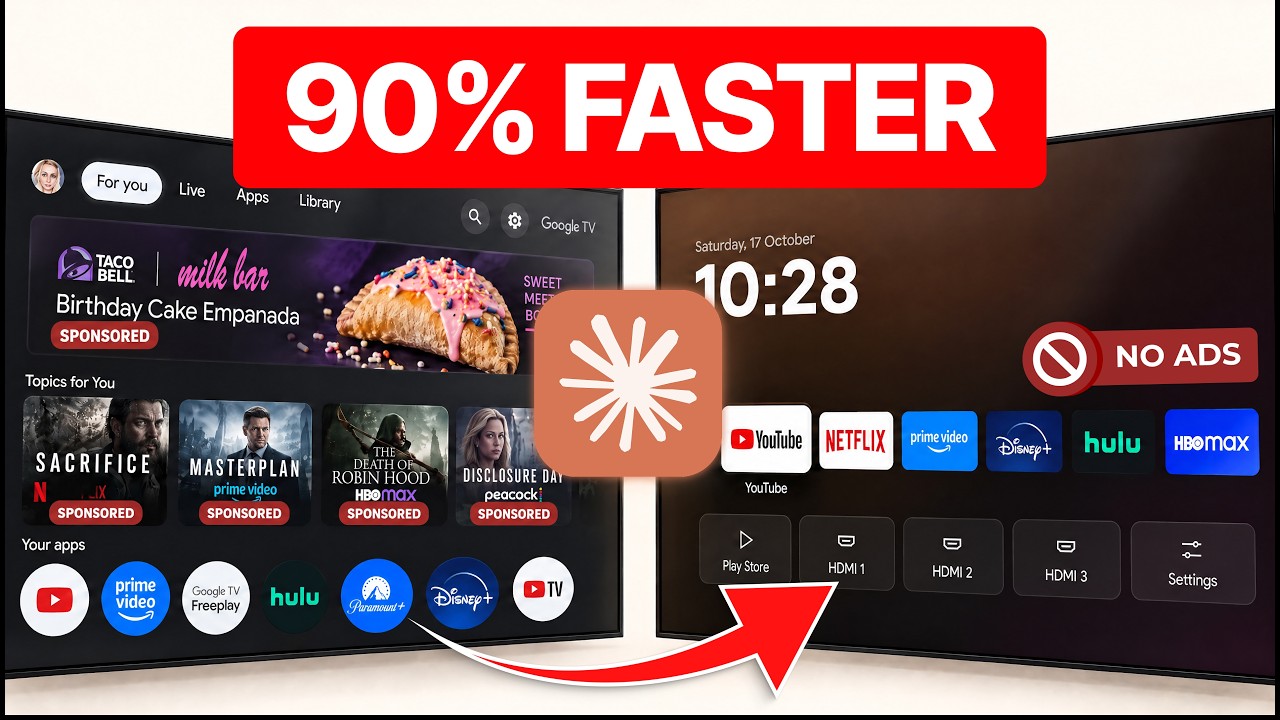
| 🧹 清除垃圾 臃肿软件、广告和赞助推荐行,统统消失。 | 📺 一个安静的主屏幕 你的应用、你的 HDMI 输入和一个时钟。仅此而已。 | ↩️ 随时撤销 应用只是被停用,绝不会删除。 |
看看它如何工作
▶ Claude 让我的旧 Android TV 焕然一新 · 在真机上的完整设置过程,仅 4 分钟。
开始使用
1. 在电视上开启开发者模式。 设置 → 设备偏好 → 关于 → 连按 Build(版本号)7 次。然后在 开发者选项 中开启 USB 调试。卡住了?
2. 在笔记本上打开 Claude Code 或 Codex。 笔记本和电视必须连接同一个 Wi-Fi。
3. 粘贴以下内容。
帮我清理我的 Android TV 并让它更快。
我的电视是 <品牌和型号>。

1. 通过 Wi-Fi 连接到我的电视。需要我在电视上操作时,
   逐步指导我。
2. 在做任何更改之前,用通俗的语言列出每一个应用:
   可以安全停用的、电视系统需要的、以及我正在使用的应用。
   检查可用内存。
3. 每次更改前都要征求我的意见。停用应用而不是删除它们。
   记录你所做的更改以及如何撤销。
4. 绝对不要停用:Google Play services
   (com.google.android.gms)、Google Play、Settings(设置)、
   System UI(系统界面)、设置向导应用、键盘、蓝牙、我的 HDMI
   输入、电视的输入和调谐器框架,以及电视启动所需的任何
   其他组件。如果不确定,就保留。唯一的例外:如果 install.sh
   提议停用 Google TV 的设置应用(因为它抢占了 Home),
   先征求我的意见。
5. 安装主屏幕:下载
   https://github.com/Ansub/tv-detox 并用我的电视和这些应用
   运行其 install.sh:<你的应用>。
6. 关闭动画和屏保,并让电视在 5 分钟后休眠。
7. 最后一次更改后等待 30 秒,然后重启电视一次,
   确认它正常启动后再宣布完成。向我展示前后的可用内存。
就这样。它会在每次更改前询问你。
[!NOTE] 这是我们的实践方法,并非专业建议。使用风险自负。你要对自己的电视负责,如果出了问题,我不承担任何责任。
帮助
如何开启开发者模式?
- 在电视上打开 设置,然后 设备偏好(或 系统),再打开 关于。
- 在 Build(版本号)上按 OK 键 7 次,直到看到"您现在已是开发者"。
- 返回,打开 开发者选项 并开启 USB 调试。如果看到 网络调试 或 无线调试,也一并开启。
- 笔记本第一次连接时,电视会询问"允许调试吗?“勾选"一律允许"并按 允许。
不同品牌的菜单略有差异。如果卡住了,问 Claude 或 Codex:“我有一台 <品牌和型号> 电视。你如何从我的笔记本连接并控制它?”
支持哪些电视?
Android TV 9(真机)、11 和 12,以及 Google TV 14。每一项更改都在模拟器上自动测试。
可以在 Fire TV、Roku、三星或 LG 上用吗?
- Amazon Fire TV: 部分可以。Fire TV 底层是 Android,所以清理有效。Amazon 在新款 Fire TV 上封锁了更换主屏幕,所以你只能保留 Amazon 的。告诉 Claude 你想保留什么,比如遥控器上的 Alexa 语音搜索。
- Roku: 不行。Roku 运行自己的系统而非 Android,所以无法连接并停用任何东西。
- 三星(Tizen): 不行,原因相同。
- LG(webOS): 不行。你仍然可以通过在电视主屏幕设置中关闭 Home Promotion 和 Content Recommendation 来减少广告。
如果你的电视或电视盒子运行 Android TV 或 Google TV,应该可以用。这包括许多 Sony、TCL、海信、飞利浦和小米电视、Chromecast with Google TV 以及 Nvidia Shield。其中一些品牌也销售 Roku 或其他非 Android 机型,所以不确定时请查看 设置 > 关于。
投影仪或 Android 手机呢?
- Android 投影仪: 大概可以。如果有 开发者选项 和 USB 调试,清理应该有效。廉价投影仪通常运行定制版 Android,所以主屏幕可能表现略有不同。
- Android 手机: 仅限清理。主屏幕是为电视遥控器设计的,不支持触控。
在 Chromecast with Google TV 上有什么注意事项?
它运行的是本项目测试所用的同一个 Google TV,所以应该可以。做过的人反馈了两件事:
- 遥控器上的 YouTube 按键可能会失效,有些人还会丢失投屏功能。如果你使用投屏,告诉 Claude 保持投屏开启。
- Google TV 可能会找回自己的主屏幕。如果发生这种情况,让 Claude 停用 Google TV 的主屏幕。除非它抢占了 Home 键(见下文),否则保留其设置应用。
按 Home 键打开的是 Google TV 的设置界面而不是主屏幕(Sony BRAVIA 等)
在某些 Google TV 上,一旦 Google TV 的主屏幕(com.google.android.apps.tv.launcherx)被停用,Android 会改选设置应用(com.google.android.tungsten.setupwraith)作为 Home。install.sh 会识别这种情况,并在停用设置应用前先询问。只有当 Home 键打开的正是该应用、Google TV 主屏幕已被停用且电视已完成首次设置时,它才会询问。YES=1 不会停用它;如需停用请使用 YES_SETUP=1。这在一台 Sony BRAVIA 上有效,但并未在所有电视上测试过。undo.sh 会重新启用它。
手动撤销:
adb shell pm enable com.google.android.tungsten.setupwraith
adb shell pm enable com.google.android.apps.tv.launcherx
如果电视再次要求重新设置,或设置界面无法完成,请先重新启用设置应用。
Claude 应用说无法连接到我的电视
Claude 应用(以及 claude.ai)中的对话运行在 Anthropic 的服务器上,而不是你的笔记本上,所以它看不到你的电视。你需要能在自己笔记本上运行的工具:Claude Code 或 Codex。
不想为此付费?跳过 AI,直接使用 install.sh(见下方"能否不用 AI 安装主屏幕?")。
能否不用笔记本,直接用手机操作?
暂时不行。Claude 必须运行在与电视同一网络的电脑上。手机热点可以作为该网络使用,只要笔记本和电视都连上它。
我的电视用的是以太网而不是 Wi-Fi
效果一样。你的笔记本通过家庭网络中的 IP 地址与电视通信,所以网线还是 Wi-Fi 无所谓。笔记本只需在同一网络中。电视的 IP 可以在其网络设置中找到,或者让 Claude 去找。
能否只做清理,保留电视自带的主屏幕?
可以。跳过提示词的第 5 步(“安装主屏幕”)即可。电视外观不变,只是垃圾被停用了。
为什么不直接用 Projectivy Launcher?
可以用的。清理才是让电视变快的关键,它兼容任何主屏幕。这个主屏幕是为想要极简开源方案的人准备的:一个界面,无广告,无需账号,仅占用约 30 MB 内存。
电视开机后仍直接打开 Live TV 或 HDMI
那是电视自身设置的问题,不是这个主屏幕的问题。问它:“我的电视开机后直接打开 Live TV 而不是主屏幕。找到那个设置并关掉。”
遥控器上的某个按键失灵了
有些遥控按键由电视自带主屏幕或被清理停用的应用处理。要查看哪个应用处理哪个按键,问 Claude:“运行 adb shell dumpsys window policy,告诉我遥控器的全局按键指向哪些应用。” 如果不是电视主屏幕而是其他应用,重新启用那个应用即可。
某些 Google TV 上的 YouTube 按键(在小米和 Vu 上见到):它指向 Google TV 自带主屏幕,而 install.sh 停用了它,所以按键无效。重新启用该主屏幕可恢复按键,但电视随后可能再次打开 Google TV 主屏幕而不是这个。在找到安全修复之前,请从主屏幕上的 YouTube 磁贴打开 YouTube。
某次更新又把东西打开了
sh check.sh <TV_IP>                  # 检查主屏幕是否仍在掌权
sh check.sh <TV_IP> --fix            # 并修复它
sh check.sh <TV_IP> --fix my-tv.txt  # 同时检查你自己的更改清单
你的清单每行一条更改,例如 off com.example.app、global window_animation_scale 0 或 `device_config activity_manager max_ca
ched_processes 4`. Ask Claude to write it from the changes it made.
Can I install the home screen without AI?
Yes. You only need adb. On a Mac, run brew install android-platform-tools. On Windows, download Google’s SDK Platform Tools, unzip it, and run the commands below from Git Bash. Download this repo, then:
sh install.sh <TV_IP>                                               # picks your TV apps for you
sh install.sh <TV_IP> "com.netflix.ninja,com.hulu.livingroomplus"   # or choose them
sh install.sh <TV_IP> "" "bluetooth,sound,picture"    # add settings shortcuts
Most TVs keep opening their own home screen, so the script offers to turn that off. Nothing is uninstalled.
How do I change the apps on the home screen?
Use the remote. Hold OK on an app (or press Menu) to:
- Move it: use the arrows to slide it to a new spot, then press OK to finish.
- Replace it: pick another app to take its place.
- Remove it from the home screen. The app stays installed, and you can add it back any time.
- Uninstall it, for apps you installed yourself. The TV asks you to confirm first.
- App info, for apps that came with the TV. They can’t be uninstalled, but from there you can turn them off.
To add an app, pick the Add app tile in the bottom row. Add as many apps as you like: they wrap into rows of six, and the page scrolls once there are more than twelve. Your changes are kept until you run install.sh with a new app list.
Can I get Wi-Fi and Bluetooth one press away?
Yes. A small network icon always sits next to the clock. It shows Wi-Fi (with signal bars), Ethernet or a crossed-out Wi-Fi when you’re offline, and opens your network settings. Bluetooth, Sound and Picture shortcuts can join it. They’re off unless you ask for them:
sh install.sh <TV_IP> "" "bluetooth,sound,picture"   # pick any of them, in any order
sh install.sh <TV_IP> "" "none"                                    # take them away
Press Up from your apps to reach them. A shortcut your TV has no screen for is left out. On TCL TVs, Sound and Picture open TCL’s own panels.
How do I undo it?
sh undo.sh <TV_IP>
This turns your TV’s own home screen back on and removes this one. To undo the cleanup too, ask Claude or Codex to reverse everything on its list.
My TV is stuck restarting
Your laptop can often still connect for a few seconds each time the TV starts. Use that to turn everything back on:
adb connect <TV_IP>
adb wait-for-device
adb shell pm list packages -d
That lists everything that’s turned off. Turn each one back on with adb shell pm enable <package>, or all of them at once:
for p in $(adb shell pm list packages -d | tr -d '\r' | sed 's/package://'); do adb shell pm enable "$p"; done
To undo just the home screen, run sh undo.sh <TV_IP>. Then restart the TV. You can redo the cleanup later, one app at a time.
If the laptop never connects, use the TV’s recovery mode or a factory reset. How you get there depends on the brand and model, so check your TV maker’s support page.
For developers: build it yourself
- Put your default apps in
apps.txt(package names, one per line). You can also pass them toinstall.shinstead. - Install Java 17 and the Android SDK. On a Mac:
brew install openjdk@17
brew install --cask android-commandlinetools
sdkmanager "platforms;android-34" "build-tools;34.0.0"
sh build.sh, thensh install.sh <TV_IP>installs your build instead of the release.sh ci/smoke-test.sh <TV_IP or emulator>checks it all works.
HDMI inputs are found on their own. The labels follow the TV’s language, with 16 languages built in. To add yours or fix a translation, edit src/com/ansub/tvhome/Strings.java. Keep key.jks, which is made on your first build: updates must be signed with the same key.
It’s one screen of plain Java, no libraries, no Gradle. The background is drawn once, the only animation is the focus lift, and it uses about 30 MB of RAM.
Contributing
Pull requests are welcome for fixes that keep working on every TV. This project sticks to official apps and Android’s own settings, so changes that add ad blockers or unofficial apps won’t be merged. If you want those, fork it and make it yours.